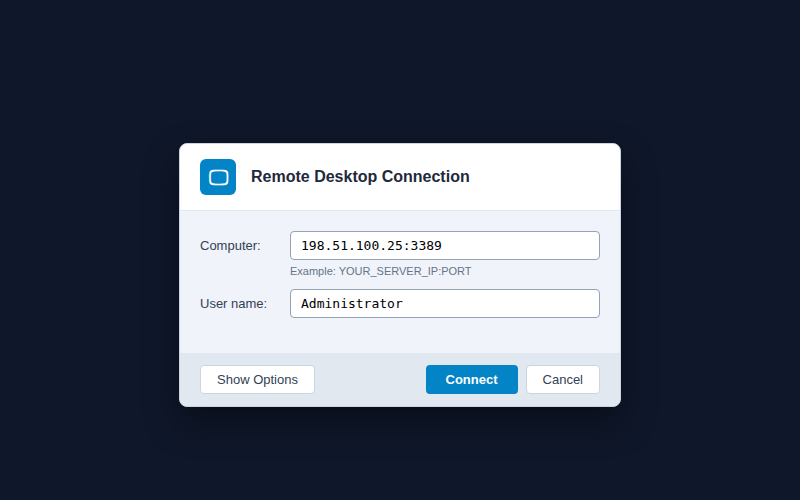
Remote Desktop Protocol (RDP) is the standard management protocol for connecting to and controlling a Windows VPS, dedicated server, or remote desktop instance over the internet. When connected via RDP, you interact with your remote server exactly as if you were sitting directly in front of physical monitor and keyboard, with full mouse control, audio redirection, and clipboard sharing.
This guide walks you through connecting to your Windows server across all major operating systems (Windows 10/11, macOS, and mobile), configuring display and performance options, and properly disconnecting without leaving locked orphan sessions.
What you need before connecting
- Server IP Address & Port: Provided in your Aminserve service delivery email (e.g.
198.51.100.25or custom port198.51.100.25:33389). - Username: Default is usually
Administrator(or your custom user account). - Password: Your secure server password.
Method 1: Connect from Windows 10 and Windows 11 (Fastest)
Every Windows computer includes the native Remote Desktop Connection client (mstsc.exe) pre-installed.
Step 1: Launch Remote Desktop Connection
- Press Win + R on your keyboard to open the Run dialog.
- Type
mstscand press Enter (or search for Remote Desktop Connection in the Start menu).
Step 2: Enter IP address and credentials
- In the Computer field, enter your server IP address (e.g.
198.51.100.25). If your provider uses a custom port, append it after a colon (e.g.198.51.100.25:33389). - Click Connect.
- In the Windows Security prompt, enter your username (
Administrator) and password. - Check the box for “Remember me” if you want Windows to store credentials locally.
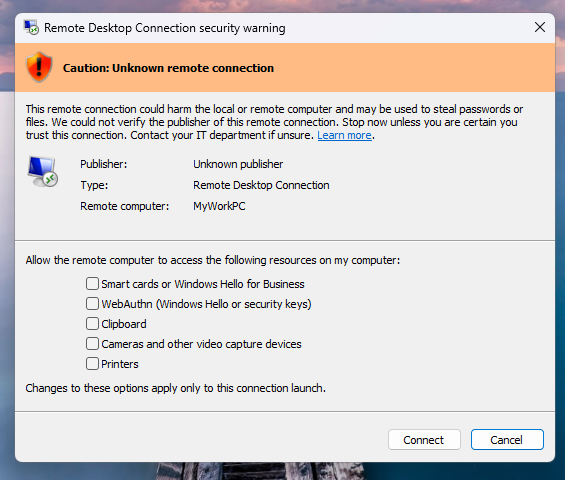
Step 3: Accept the SSL certificate warning
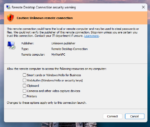
When connecting to a VPS for the first time, Windows displays a notice stating: “The identity of the remote computer cannot be verified.” This is normal for cloud VPS instances using self-signed TLS certificates. Check “Don’t ask me again for connections to this computer” and click Yes.
Method 2: Connect from Apple macOS (Mac)
Mac users can connect using Microsoft’s free official application:
- Open the Mac App Store and install Windows App (formerly Microsoft Remote Desktop).
- Click the + button in the top menu and select Add PC.
- Enter your server IP in the PC Name field.
- Under User Account, select Add User Account and enter
Administratorand your password. - Double-click the newly created connection card to launch the desktop. See our full Mac RDP setup guide.
Method 3: Connect from iPhone, iPad, or Android
For mobile connectivity on smartphones and tablets, download the official Microsoft client:
- iOS (iPhone/iPad): Download Windows App from the App Store. See our iPhone RDP guide.
- Android: Download Remote Desktop from Google Play Store.
Important: How to Disconnect vs. Log Off properly
Understanding how you close your RDP session is crucial to avoid locking yourself out:
- Disconnect (Clicking the top “X” bar): Leaves all your applications, browser tabs, and background scripts running on the server. Your user account remains logged on in memory.
- Sign Out / Log Off (Start > User Profile > Sign out): Closes all running programs and frees up the RDP connection slot for other users.
Warning: Avoid selecting Shut Down from the Start menu inside your remote server, as this will completely power down your virtual machine and require logging into the client control panel to restart it.
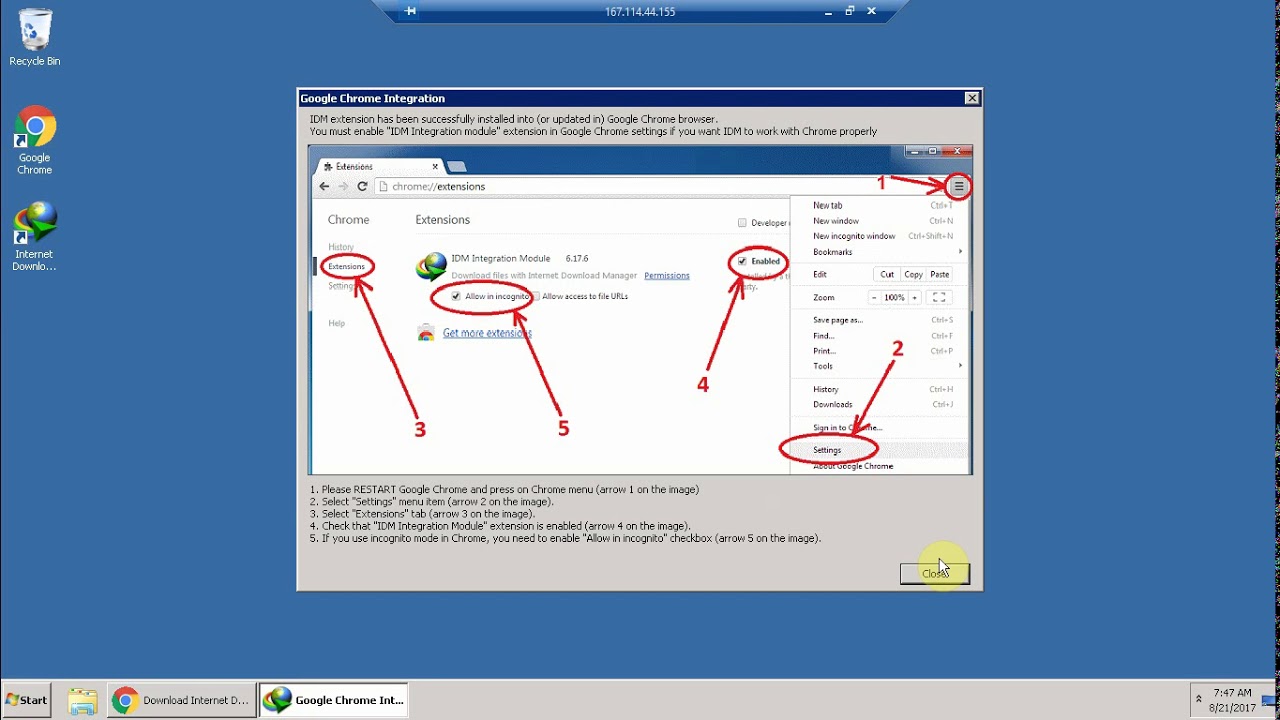
Video Walkthrough: How to Connect to Windows RDP
Troubleshooting common RDP connection errors
1. “Remote Desktop can’t connect to the remote computer”
- Verify that the server has completed its initial boot sequence (takes 1–2 minutes after ordering or restart).
- Ensure you have included the custom port if your server does not use default 3389.
- Confirm your local network does not block outbound RDP connections.
2. “The terminal server has exceeded maximum connections”
Windows Server allows 2 concurrent administrative sessions. If previous sessions were disconnected rather than signed out, force an admin connection with mstsc /v:IP /admin as shown in our terminal server max connections fix.
3. Emergency access: Out-of-band VNC Console
If network settings or firewalls block RDP access, use the web-based HTML5 VNC console in the Aminserve Client Area as detailed in our VNC rescue guide.
For high-speed, reliable cloud computing with full Administrator privileges and instant deployment, explore Aminserve Remote Desktop Plans and Windows VPS hosting backed by 24/7 dedicated support.