When deploying production services, DNS nameservers, web hosting panels, or database clusters on a Linux VPS or dedicated server, configuring a permanent static IP address prevents IP lease churn, DHCP renewal drops, and network unreachable errors. Modern Linux distributions have transitioned away from legacy network scripts (like /etc/sysconfig/network-scripts/ifcfg-eth0) to declarative network renderers like Netplan (Ubuntu/Debian) and NetworkManager / nmcli (AlmaLinux, Rocky Linux, RHEL).
This technical guide provides step-by-step instructions for configuring static IPv4 and IPv6 network adapters on Ubuntu 24.04 / 22.04 LTS, Debian 12, and AlmaLinux / Rocky Linux 9 & 8, configures primary DNS nameservers, and verifies routing reachability. If you are hardening management access on your server, see our guides on How to Change Default SSH Port and CSF Firewall Setup.
Prerequisites: Identifying your network interface name
Before modifying configuration files, determine your active Ethernet interface identifier (commonly eth0, ens3, ens18, or enp1s0):
# List network interfaces and current IP assignments
ip -br a
Note your target interface name (e.g. eth0), assigned static IP (e.g. 198.51.100.50/24), default gateway (e.g. 198.51.100.1), and upstream DNS resolvers (8.8.8.8 and 1.1.1.1).
Method 1: Configure static IP on Ubuntu 24.04 / 22.04 (Netplan)
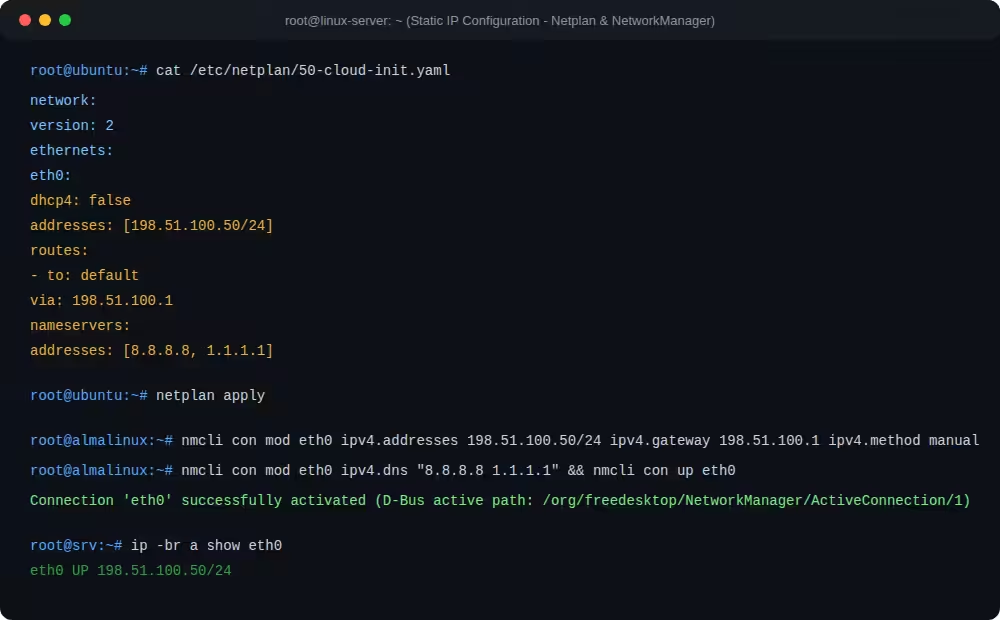
Ubuntu uses Netplan YAML configuration files located under /etc/netplan/ (e.g. /etc/netplan/50-cloud-init.yaml or /etc/netplan/01-netcfg.yaml):
- Open your Netplan configuration file in a text editor:
sudo nano /etc/netplan/50-cloud-init.yaml - Update the YAML structure with strict 2-space indentation (avoid tab characters):
network: version: 2 renderer: networkd ethernets: eth0: dhcp4: false addresses: - 198.51.100.50/24 routes: - to: default via: 198.51.100.1 nameservers: addresses: [8.8.8.8, 1.1.1.1] - Test and apply the network configuration:
# Validate syntax and apply changes
sudo netplan apply
Method 2: Configure static IP on AlmaLinux / Rocky / RHEL (nmcli)
Modern Enterprise Linux distributions use NetworkManager. Configure your interface safely in two commands using nmcli:
- Modify the connection profile with your static IP, subnet, gateway, and manual assignment mode:
# Assign static IP, gateway, and disable DHCP sudo nmcli con mod eth0 ipv4.addresses 198.51.100.50/24 ipv4.gateway 198.51.100.1 ipv4.method manual - Set persistent DNS nameservers and bring up the connection:
# Set DNS resolvers and reactivate network connection
sudo nmcli con mod eth0 ipv4.dns "8.8.8.8 1.1.1.1" && sudo nmcli con up eth0
Method 3: Configure static IP on Debian 12 (/etc/network/interfaces)
On standalone Debian 12 servers utilizing traditional ifupdown networking:
- Edit
/etc/network/interfaces:sudo nano /etc/network/interfaces - Define the static interface block:
auto eth0 iface eth0 inet static address 198.51.100.50 netmask 255.255.255.0 gateway 198.51.100.1 dns-nameservers 8.8.8.8 1.1.1.1 - Restart the networking service:
sudo systemctl restart networking
Step 4: Verify IP assignment and internet gateway routing
Validate your network state and DNS resolution using these diagnostic commands:
- Check Active IP Address:
ip addr show dev eth0 - Test Default Gateway Ping:
ping -c 3 198.51.100.1 - Verify DNS Name Resolution:
ping -c 3 google.com
For remote desktop environments on Linux, see our setup guides on Ubuntu Desktop with XRDP and VNC with XFCE Desktop.
For high-reliability infrastructure with dedicated static IPv4/IPv6 subnets and 1Gbps unmetered bandwidth, explore Aminserve Linux Cloud VPS and Swiss Dedicated Servers.