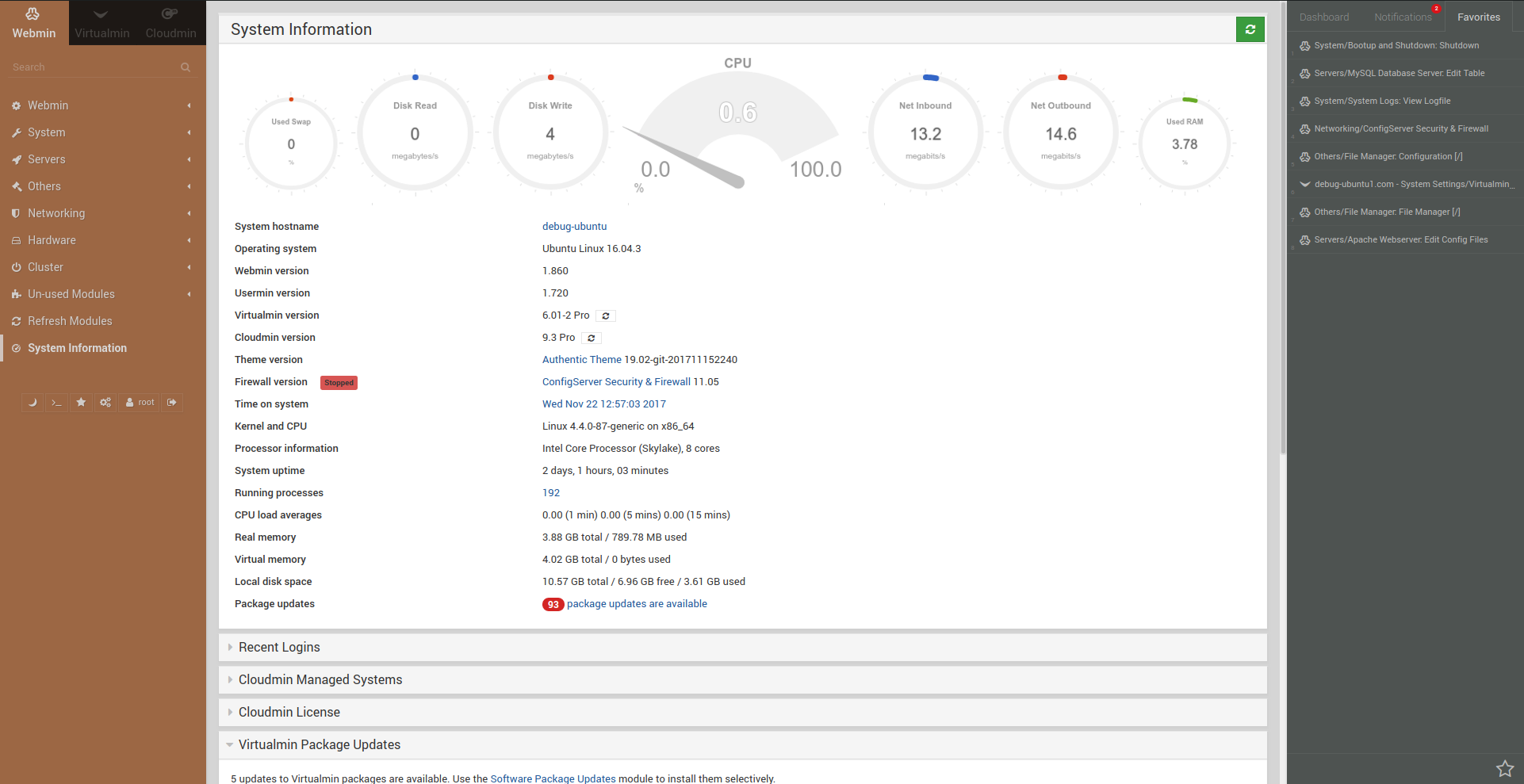
Administering a Linux VPS or dedicated server does not always require typing complex commands in a terminal. Webmin is a premier, open-source, web-based system administration panel for Unix-like servers. It allows you to manage user accounts, Apache/Nginx web servers, DNS records, MySQL/MariaDB databases, cron jobs, file sharing, and Linux firewall rules directly from any web browser.
This guide explains how to install Webmin using the official repositories on Ubuntu, Debian, AlmaLinux, Rocky Linux, and CentOS, configure SSL access over port 10000, and secure your administrative dashboard.
Why use Webmin for VPS management?
- Zero Commercial Licensing Fees: 100% free and open-source alternative to cPanel or Plesk.
- Modular Architecture: Manage Apache, Postfix, BIND DNS, Let’s Encrypt SSL, and Docker containers with one click.
- Web-Based File Manager: Upload, edit, and compress files directly in your browser without needing separate FTP clients.
- Built-in Web Terminal: Access a full command-line terminal without opening an external SSH client.
Method 1: Install Webmin on Ubuntu and Debian (Recommended)
The cleanest installation method uses the official Webmin repository script which configures the GPG signing keys and APT sources automatically:
Step 1: Download and run the official setup script
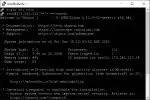
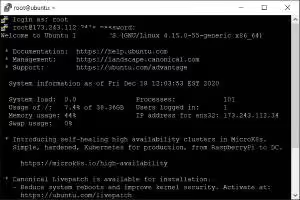
- Connect to your server via SSH as
root(or a sudo user). - Run the official Webmin repository automated setup script:
curl -o setup-repos.sh https://raw.githubusercontent.com/webmin/webmin/master/setup-repos.sh sudo sh setup-repos.sh - Confirm the repository addition when prompted.
Step 2: Install Webmin via APT
sudo apt update && sudo apt install webmin --install-recommends -yMethod 2: Install Webmin on AlmaLinux, Rocky Linux, and CentOS
On RHEL-derived distributions, set up the Webmin YUM/DNF repository:
- Create the repository file:
sudo nano /etc/yum.repos.d/webmin.repo - Paste the official Webmin repository configuration:
[Webmin] name=Webmin Distribution Neutral baseurl=https://download.webmin.com/download/yum enabled=1 gpgcheck=1 gpgkey=https://download.webmin.com/developers-key.asc - Install Webmin using DNF / YUM:
sudo dnf install webmin -y
Step 3: Open Webmin Port 10000 in your firewall
By default, Webmin listens on TCP port 10000. You must allow this port through your active server firewall.
On Ubuntu / Debian (UFW):
sudo ufw allow 10000/tcp
sudo ufw reload
On AlmaLinux / Rocky / CentOS (FirewallD):
sudo firewall-cmd --permanent --add-port=10000/tcp
sudo firewall-cmd --reload
On CSF Firewall:
Add 10000 to the TCP_IN list inside /etc/csf/csf.conf and reload using sudo csf -r (as detailed in our CSF Firewall setup guide).
Step 4: Access and log in to the Webmin web interface
- Open your web browser and navigate to your server’s IP address on port 10000 using HTTPS:
https://YOUR_SERVER_IP:10000 - Because Webmin generates a self-signed SSL certificate upon installation, your browser will display a security warning (“Your connection is not private”). Click Advanced > Proceed to YOUR_SERVER_IP (unsafe).
- Log in using your server’s root username and password (or any user with sudo privileges).
How to set a dedicated Webmin admin password
If you prefer using a distinct administrative password for the Webmin interface:
sudo /usr/share/webmin/changepass.pl /etc/webmin root YOUR_NEW_PASSWORDHow to restart or manage the Webmin service
# Check service status
sudo systemctl status webmin

# Restart Webmin service
sudo systemctl restart webmin
Emergency access: Out-of-band VNC Console
If firewall settings or network access rules block your access to port 10000, log in to your Aminserve Client Area and open the out-of-band HTML5 VNC console as explained in our VNC rescue guide.
For high-performance, developer-ready Linux cloud infrastructure with full root access and 1Gbps ports, explore Aminserve Linux VPS hosting and Windows RDP Servers backed by 24/7 dedicated support.