Connecting to a high-speed VPN requires reliable software that combines military-grade encryption, zero IP leaks, and seamless multi-device support. Whether securing everyday browsing, streaming geo-restricted media in 4K, or preventing ISP bandwidth throttling on a smart TV, Aminserve provides native, brandless client applications across all major desktop, mobile, and television platforms.
This technical setup guide covers downloading the official client applications, configuring high-performance protocols (WireGuard, OpenVPN UDP/TCP, IKEv2, L2TP/IPsec), enabling built-in kill switches, and connecting your devices in under two minutes. Follow the quick installation steps below to get started on any platform.
Cross-platform VPN apps quick download matrix
| Platform | Download Installer | Protocols Supported | Minimum OS Version |
|---|---|---|---|
| Microsoft Windows | Download Windows Client (.exe) | WireGuard, OpenVPN, IKEv2, L2TP, Stealth | Windows 10, 11 & Windows Server (64-bit) |
| Apple macOS | Download macOS Client (.dmg) | WireGuard, OpenVPN, IKEv2, L2TP, Stealth | macOS 11 Big Sur or newer (Apple Silicon & Intel) |
| Linux (GUI Desktop) | Download Linux Client (.run) | WireGuard, OpenVPN UDP/TCP | Ubuntu, Debian, Fedora, Arch, Rocky Linux |
| Firestick & Android TV | Download Android TV APK | WireGuard, OpenVPN UDP/TCP | Fire OS 6+ / Android TV 7.0+ (Code: 118535) |
| Android Phones & Tablets | Google Play Store App | WireGuard, OpenVPN UDP/TCP | Android 8.0 Oreo or higher |
| Apple iOS (iPhone / iPad) | Apple App Store Application | IKEv2, WireGuard | iOS 14.0 or higher |
Method 1: Windows PC and VPS installation and setup
The Windows desktop client offers a full suite of security features, including an automated kill switch, DNS leak prevention, and multi-protocol switching:
- Download the installer package: Windows VPN Client Installer (.exe).
- Run the setup wizard and follow the standard on-screen installation prompts.
- Launch the app and enter your VPN credentials provided in your service activation email.
- Select your desired server location from the list (USA, UK, Germany, Netherlands, Switzerland, France, or Australia) and click Connect.
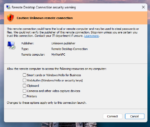
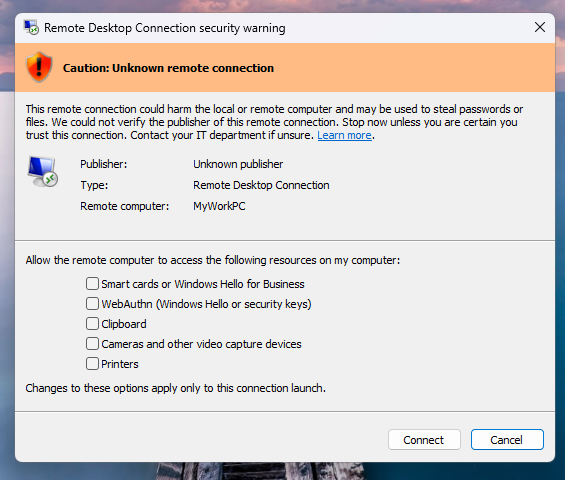
Pro Tip for Windows VPS Users: If managing remote servers where you cannot install third-party software, follow our native tutorial on How to Connect to VPN from Windows via L2TP/IPsec without third-party clients.
Method 2: macOS (Apple Silicon and Intel) setup
The native macOS client integrates cleanly into the macOS menu bar, allowing one-click connection toggles without cluttering your workspace:
- Download the disk image: macOS Client (.dmg).
- Double-click the
.dmgfile and drag the VPN application into your Applications folder. - Open the app. When prompted by macOS, allow the System Extension to create the encrypted tunnel configuration.
- Log in with your account credentials, choose your server node, and toggle the switch to ON.
Method 3: Linux (Ubuntu, Debian, and Arch) installation
The Linux client provides a lightweight graphical user interface built for modern distributions:
- Download the self-contained installer: Linux VPN Client (.run).
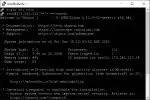
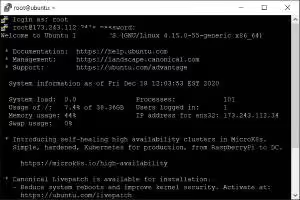
- Open your terminal, navigate to your downloads directory, make the binary executable, and run it:
chmod +x vpnclient.run ./vpnclient.run - Authenticate with your Aminserve account and connect over WireGuard for maximum throughput.
Method 4: Amazon Firestick and Android TV sideloading

Smart TVs and streaming sticks require remote-friendly navigation and optimized buffer handling. You can install the TV app in two minutes using the Downloader utility:
- Install the Downloader app from the Amazon Appstore or Google Play Store on your TV.
- Enable Developer Options > Install Unknown Apps for Downloader in your TV settings.
- Open Downloader, enter the quick numeric code
118535(or direct URL:https://aminserve.com/downloads/VPNClient-TV.apk), and click Go. - Click Install, open the app, and log in with your credentials. For full optimization instructions, read our in-depth Firestick & Android TV VPN Setup Guide.
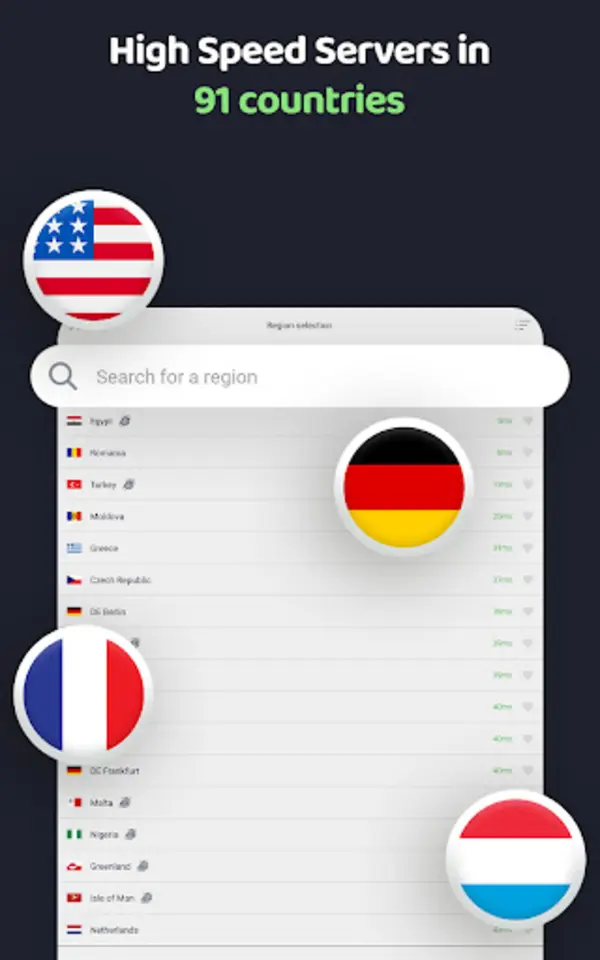
Method 5: Mobile devices (iOS and Android)
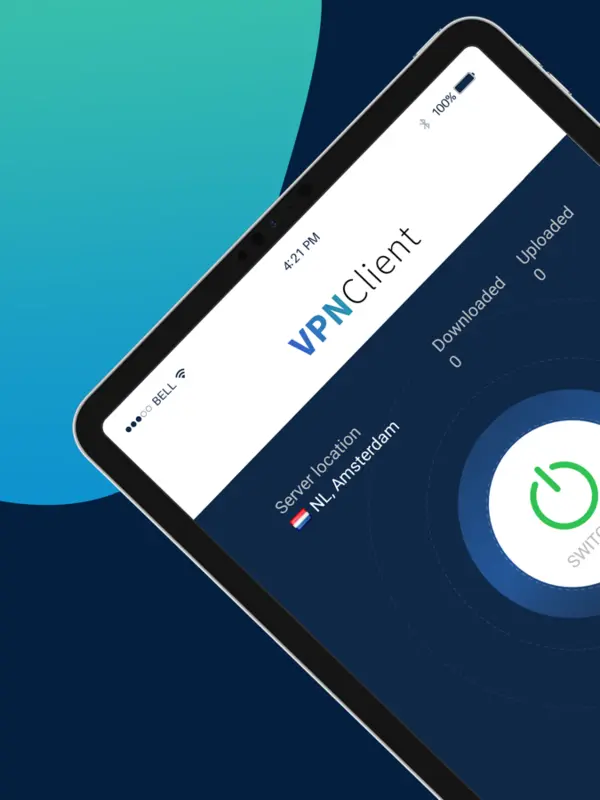
For smartphones and tablets, native apps provide automated network switching between Wi-Fi and 5G cellular data:
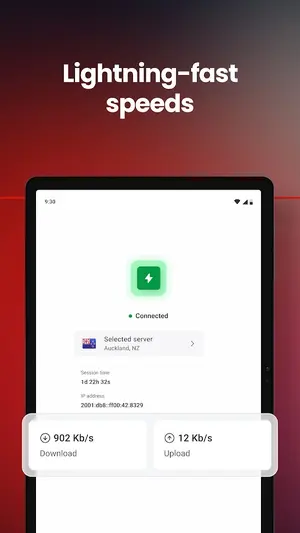
- iOS (iPhone & iPad): Install directly from the Apple App Store. It configures the iOS VPN profile automatically upon login.
- Android Phones & Tablets: Install directly from the Google Play Store. Supports per-app split tunneling so you can route specific banking or streaming apps through the VPN while keeping other traffic direct.
Protocol selection: WireGuard vs OpenVPN vs IKEv2
Selecting the right tunneling protocol optimizes your connection for security or raw speed depending on your network conditions:
- WireGuard (Recommended): State-of-the-art cryptography (ChaCha20, Poly1305), near-instant handshake, and highest bandwidth throughput. Best for gaming, 4K streaming, and fast downloads.
- OpenVPN UDP: Robust standard for mixed networks with high packet loss resistance.
- OpenVPN TCP (Stealth Mode): Encapsulates VPN traffic over port 443 (HTTPS) to bypass restrictive firewalls and DPI (Deep Packet Inspection) blocks.
- IKEv2: Industry-standard mobile protocol offering seamless roaming between Wi-Fi and cellular networks without dropping active connections.
Frequently asked questions
How many simultaneous devices are supported per account?
Each Aminserve VPN subscription supports up to 10 simultaneous device connections across any combination of Windows, Mac, Linux, iOS, Android, and smart TVs.
What should I do if a streaming app blocks the connection?
Disconnect the VPN, clear cache on your target streaming application, switch to an alternative server node in the same country, and reconnect. For complete remote workstation privacy, explore our High-Speed RDP Hosting and Cloud VPS Solutions.