Streaming high-definition media, IPTV streams, and international content on smart televisions requires high throughput, unthrottled bandwidth, and strong encryption. Running a high-speed VPN on your Amazon Fire TV Stick, Fire TV Cube, or Android TV Box (Nvidia Shield, Xiaomi Mi Box, Google TV) protects your streaming activity from ISP bandwidth throttling while unblocking geo-restricted libraries globally.
This technical setup guide walks beginners through installing the Aminserve VPN application on Fire TV and Android TV devices using the Downloader app code (118535), side-loading the direct APK, and optimizing streaming buffer performance. If you are comparing encrypted VPN routing with remote workstation management, see our guide on RDP vs VPN for Remote Access.
Method 1: Install on Firestick via Downloader code (118535)
The fastest way to install the VPN application on any Amazon Fire TV Stick or Fire TV Cube is using the Downloader utility:
- Install Downloader: From the Fire TV home screen, go to Find > Search, type
Downloader, and install the orange app from the Amazon Appstore. - Enable Developer Options:
- Go to Settings (gear icon) > My Fire TV > About.
- Highlight your device name and click the center remote button 7 times rapidly until you see the notification: “No need, you are already a developer.”
- Press back, click on Developer Options > Install unknown apps, and toggle Downloader to ON.
- Download the VPN Client:
- Open the Downloader app.
- In the URL / Search Term box, enter the direct numeric code:
118535(or enter the direct URL:https://aminserve.com/downloads/VPNClient-TV.apk). - Click Go. The APK will automatically download and prompt for installation.
- Click Install, then click Open.
Method 2: Install on Android TV and Google TV (Direct APK)
For smart televisions running native Android TV or Google TV (Sony, Philips, TCL, Hisense, Nvidia Shield):
- Open a web browser on your TV or use a file manager app with USB transfer.
- Download the official Android TV APK directly: Download Android TV VPN Client APK.
- Allow installation from unknown sources in Settings > Apps > Security & Restrictions > Unknown Sources.
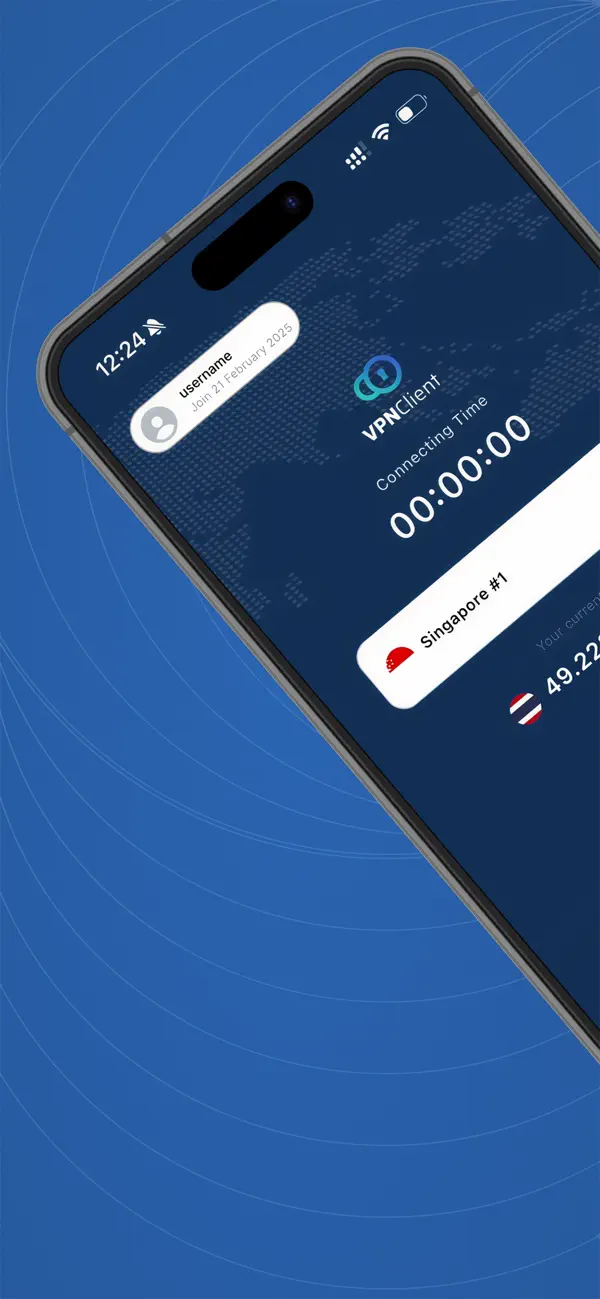
- Launch the installer and sign in with your active VPN credentials.
Step 3: Cross-platform VPN applications (Windows, Mac, iOS, Android)
Looking for installers across all operating systems? Visit our central VPN Client Downloads Hub for direct desktop, mobile, and smart TV clients.
In addition to smart TVs, you can secure all your household workstations, laptops, and mobile devices under your subscription:
| Platform | Download Link & Instructions | Protocol Supported |
|---|---|---|
| Windows PC / VPS | Windows VPN Client (.exe) | WireGuard, OpenVPN, L2TP/IPsec |
| Apple macOS | Mac VPN Client (.dmg) | IKEv2, WireGuard, OpenVPN |
| Android Phones & Tablets | Google Play Store App | WireGuard, OpenVPN UDP/TCP |
| Apple iOS (iPhone / iPad) | Apple App Store Application | IKEv2, WireGuard |
| Linux (Ubuntu / Debian) | Linux VPN Client (.run) | WireGuard, OpenVPN UDP/TCP |
If you prefer native OS configuration without client software, follow our step-by-step tutorial on How to Connect to VPN from Windows via L2TP/IPsec.
Troubleshooting VPN connection and buffering issues
- App Fails to Install (“Parse Error”): Ensure your Fire TV OS is updated to Fire OS 6 or higher, and verify you enabled Install Unknown Apps for Downloader.
- Buffering on 4K Streams: Switch protocols in the app settings from OpenVPN TCP to WireGuard or OpenVPN UDP to reduce packet encapsulation latency.
- Location Lock Error: Disconnect the VPN, clear cache on your streaming app (Settings > Applications > Manage Installed Applications > Clear Cache), connect to the closest low-latency VPN server node, and restart the stream.
For unmetered 1Gbps bandwidth, dedicated IP addresses, and 24/7 technical support, explore Aminserve High-Speed VPN Services, Cloud VPS Solutions, and High-Performance RDP Hosting.