When running business applications, trading bots, or specialized software on a Windows VPS or Remote Desktop (RDP) server, you may encounter error popups such as “This application requires .NET Framework 3.5 (includes .NET 2.0 and 3.0)” or “Error 0x800F081F: The source files could not be found.” Because modern Windows releases do not include older runtime components by default, enabling them manually is required to run legacy and enterprise software.
This beginner-friendly guide walks you through enabling .NET Framework 3.5, 4.8, and modern .NET runtimes on Windows Server 2025, 2022, 2019, 2016, and Windows 11 / 10 using simple PowerShell commands, Server Manager, and offline DISM fallback fixes.
Method 1: Install .NET Framework 3.5 via PowerShell (Easiest fix)
The fastest way to install .NET 3.5 (which automatically includes .NET 2.0 and 3.0) is through PowerShell. No manual downloads or complex menus required:
- Right-click the Start Menu button on your Windows taskbar.
- Click Terminal (Admin) or Windows PowerShell (Admin).
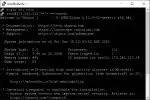
- Paste the following command and hit Enter:
(On Windows 11 or Windows 10 desktop, use:# Enable .NET Framework 3.5 on Windows Server or Windows 10/11 Install-WindowsFeature -Name Net-Framework-CoreEnable-WindowsOptionalFeature -Online -FeatureName "NetFx3" -All) - Wait 1–2 minutes until the progress bar reaches 100% and displays
Success: True.
Method 2: Install via Windows Server Manager (GUI)
If you prefer using the graphical interface on Windows Server:
- Open Server Manager from your Start Menu.
- Click Add roles and features on the Dashboard.
- Click Next through Installation Type, Server Selection, and Server Roles.
- On the Features page, check the box next to .NET Framework 3.5 Features (and .NET Framework 4.8 Features if unchecked).
- Click Next, then click Install.
Method 3: Install latest .NET Framework 4.8.1 and modern .NET Runtimes
Newer applications require .NET Framework 4.8 / 4.8.1 or modern cross-platform .NET (formerly .NET Core):
- .NET Framework 4.8.1: Pre-installed on Windows Server 2022 / 2025 and Windows 11. On older servers, download the official standalone offline installer directly from Microsoft’s .NET Portal.
- Modern .NET 8 / 9 Desktop Runtime: If your software asks for modern .NET, install it in one PowerShell command:
# Install modern .NET Desktop Runtime via Winget
winget install Microsoft.DotNet.DesktopRuntime.8 --accept-package-agreements --accept-source-agreements
How to check which .NET versions are installed
To verify which versions are currently active on your machine, run this PowerShell command:
# Query installed .NET Framework release versions
Get-ChildItem 'HKLM:\SOFTWARE\Microsoft\NET Framework Setup\NDP' -Recurse |
Get-ItemProperty -Name version -EA 0 |
Select-Object PSChildName, Version
Fixing Error 0x800F081F: “The source files could not be found”
When installing .NET 3.5, Windows may fail with error code 0x800F081F or 0x800F0906 if the server cannot download side-by-side files from Windows Update. Fix it with DISM:
- Mount your Windows Server ISO or installation media (e.g. assigned as drive letter
D:). - Run this elevated command in Command Prompt (CMD) or PowerShell:
(ReplaceDISM /Online /Enable-Feature /FeatureName:NetFx3 /All /LimitAccess /Source:D:\sources\sxsD:\with your actual mounted CD/DVD drive letter)
Why run your Windows software on Aminserve
All Aminserve Windows VPS and Remote Desktop (RDP) servers come pre-configured with complete Windows component libraries, NVMe SSD storage, and 24/7 technical support. If you ever hit an application installation roadblock, our support team is available around the clock to assist you.
Explore High-Speed USA & European RDP and Windows Cloud VPS Plans with instant activation.