By default, the Pure-FTPd file transfer daemon listens exclusively on standard TCP port 21 across all network interfaces. However, in production hosting environments, running FTP simultaneously on multiple ports (for example, standard port 21 alongside an alternate port like 2121 or 31) is often necessary to bypass restrictive client ISP firewalls, separate administrative file transfers, or maintain backwards compatibility across web hosting control panels (cPanel, DirectAdmin, Webmin).
This guide explains how to configure Pure-FTPd to listen on multiple ports on AlmaLinux, Rocky Linux, CentOS, Ubuntu, and Debian using modern systemd service instances, firewall port mapping, and socket verification.
Why run Pure-FTPd on multiple ports?
- Bypass Client ISP Filtering: Many consumer ISPs and mobile networks block outbound connections to TCP port 21. Providing an alternate port (such as
2121) ensures uninterrupted customer uploads. - Control Panel Compatibility: Keep default port 21 intact for automated panel integrations (cPanel / DirectAdmin) while offering customized endpoints for dedicated automation scripts.
- Encrypted FTPS Segregation: Route secure TLS/SSL traffic through distinct ports with dedicated passive port ranges.
Step 1: Create a secondary Pure-FTPd configuration file
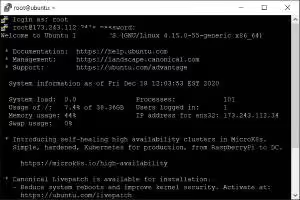
- Connect to your Linux VPS via SSH as
root. - Copy your existing production configuration to a new dedicated config file (e.g. for port 2121):
sudo cp -p /etc/pure-ftpd/pure-ftpd.conf /etc/pure-ftpd/pure-ftpd-2121.conf(On older RHEL/CentOS setups, the path may be
/etc/pure-ftpd.conf). - Open the secondary configuration file:
sudo nano /etc/pure-ftpd/pure-ftpd-2121.conf - Locate the
Binddirective (or add it if not present) and specify your target IP and alternate port:# Bind to all interfaces on alternate port 2121 Bind 0.0.0.0,2121(To bind to a specific secondary IPv4 address instead:
Bind YOUR_SECONDARY_IP,2121). - Save the file and exit (Ctrl + O, Enter, Ctrl + X).
Step 2: Create a systemd service for the secondary instance
Modern Linux operating systems manage daemons through systemd. Creating a companion service file ensures clean lifecycle management and automatic startup on server reboot.
- Create the new service unit:
sudo nano /etc/systemd/system/pure-ftpd-2121.service - Paste the following service definition:
[Unit] Description=Pure-FTPd FTP server on Port 2121 After=network.target [Service] Type=forking ExecStart=/usr/sbin/pure-config.pl /etc/pure-ftpd/pure-ftpd-2121.conf --daemonize Restart=always [Install] WantedBy=multi-user.target - Reload systemd and enable both services:
sudo systemctl daemon-reload
sudo systemctl enable --now pure-ftpd
sudo systemctl enable --now pure-ftpd-2121
Step 3: Open the new FTP port in your firewall
Allow the alternate TCP port through your active server firewall:
On FirewallD (AlmaLinux, Rocky Linux, CentOS):
sudo firewall-cmd --permanent --add-port=2121/tcp
sudo firewall-cmd --reload
On UFW (Ubuntu, Debian):
sudo ufw allow 2121/tcp
sudo ufw reload
On CSF (ConfigServer Security & Firewall):
Add 2121 to TCP_IN in /etc/csf/csf.conf and reload using sudo csf -r (as detailed in our CSF Firewall setup guide).
Step 4: Verify dual-port listening sockets
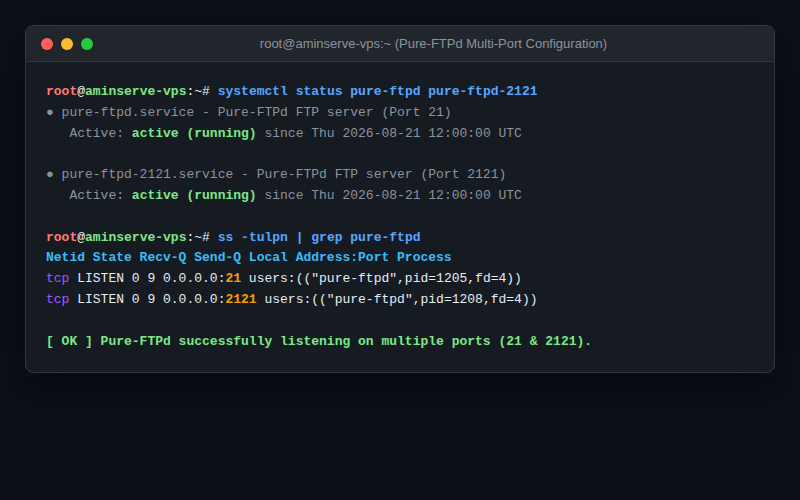
Inspect active listening TCP sockets to confirm both port 21 and port 2121 are running:
sudo ss -tulpn | grep pure-ftpdThe output will display active listeners for both ports:
tcp   LISTEN   0   9   0.0.0.0:21     users:(("pure-ftpd",pid=1205,fd=4))
tcp   LISTEN   0   9   0.0.0.0:2121   users:(("pure-ftpd",pid=1208,fd=4))
How to test connection from FTP clients
In FileZilla, WinSCP, or CLI FTP clients, connect to your server specifying the custom port:
ftp -p YOUR_SERVER_IP 2121For dedicated high-speed cloud infrastructure with unmetered bandwidth, full root access, and 24/7 technical support, explore Aminserve Linux VPS Hosting and Windows RDP Servers.