The Remote Desktop client you rely on for daily server management is reaching its end of life. Microsoft is officially retiring the legacy Remote Desktop (MSI) and web-based clients, shifting all users to the unified Microsoft Windows App.
This transition is mandatory for maintaining connectivity to your remote resources. By the May 27, 2025, deadline, legacy clients will no longer be supported for most users, though Azure Government and Azure 21Vianet cloud users have until September 28, 2026.
This guide outlines how to migrate your existing connections to ensure seamless access to your servers.
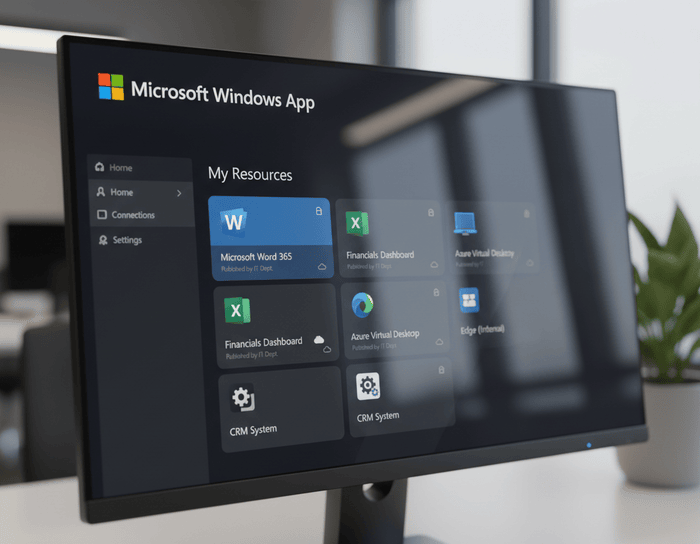
Why the Shift to Microsoft Windows App?
Microsoft has moved to a unified Microsoft Windows App to provide a consistent remote experience across Windows, macOS, iOS, and Android. Unlike the legacy client, the new app improves reliability through RDP Multipath enhancements, which better handle network fluctuations and latency.
Practitioner note: While the rebranding feels redundant, the actual performance gains in session stability are noticeable during high-latency remote sessions.
The app also adds Data Loss Prevention (DLP) capabilities through Microsoft Intune, significantly hardening your client-side security against unauthorized data exfiltration.
5 Steps for a Seamless RDP Migration
You can transition your existing infrastructure by following these steps.
- Download and Install: Visit the official Microsoft store or the Windows App portal to download the latest Windows App for your specific operating system.
- Import Existing Settings: The installer automatically detects existing RDP files. If it does not, manually import your
.rdpconnection files into the new app interface. - Verify Connection Flow: Open a session to verify that RDP Multipath is active and that your session-specific configurations (like multi-monitor support or drive redirection) have carried over correctly.
- Update URI Links: If you use desktop shortcuts for rapid access, update them to use the new URI-based connection format.
   # Example URI for rapid session resumption
   ms-windows-app:?workspaceId=your-workspace-id&resourceId=your-server-address
- Uninstall Legacy Clients: Once you have confirmed that all your connections are functioning, uninstall the legacy Remote Desktop client to avoid accidental session launches from deprecated software.
Important Service Deadlines
If you fail to migrate by these dates, you will experience connection failures. For deeper technical details on the transition, refer to Microsoft’s official Windows App updates and the Remote Desktop client comparison page.
| Service Version | Support Deadline |
|---|---|
| Remote Desktop (MSI/Web) | May 27, 2025 |
| Azure Government / 21Vianet | September 28, 2026 |
Practitioner note: Always test your connection from a non-production environment first to ensure that any custom security policies or redirection scripts remain compatible with the new app.
Next Steps for Verification
Once you have migrated, spend time reviewing the Windows App settings panel. Adjust your display resolution and device redirection settings to match your specific professional needs. If a session fails to initiate, re-verify your gateway settings within the new app’s profile manager, as these are the most common source of post-migration authentication errors.