Whether configuring a newly provisioned Windows VPS, managing a bare-metal dedicated server, or enabling remote access on Windows 11/10 workstations, configuring Remote Desktop Protocol (RDP) correctly requires both activating the underlying Terminal Server service and unblocking perimeter firewall rules. While Windows Server Manager provides a graphical toggle, automating the setup via PowerShell or Command Prompt (CMD) allows administrators to configure RDP in seconds.
This comprehensive technical guide details five verified methods to enable RDP across modern Windows operating systems (Windows Server 2025, 2022, 2019, 2016, and Windows 11 / 10 Pro & Enterprise), configures Windows Defender Firewall rules, and troubleshoots common connection blockers.
Method 1: Enable RDP via PowerShell (Fastest automated method)
The fastest way to enable RDP and open the necessary firewall ports simultaneously is via an elevated PowerShell prompt (Right-click Start > Windows PowerShell (Admin) or Terminal (Admin)):
# Enable RDP Terminal Server via Windows Registry
Set-ItemProperty -Path 'HKLM:\System\CurrentControlSet\Control\Terminal Server' -Name "fDenyTSConnections" -Value 0

# Unblock Remote Desktop in Windows Defender Firewall
Enable-NetFirewallRule -DisplayGroup "Remote Desktop"

# Require Network Level Authentication (NLA) for security
(Get-WmiObject -Namespace "root\cimv2\TerminalServices" -Class "Win32_TSGeneralSetting" -Filter "TerminalName='RDP-Tcp'").SetUserAuthenticationRequired(1)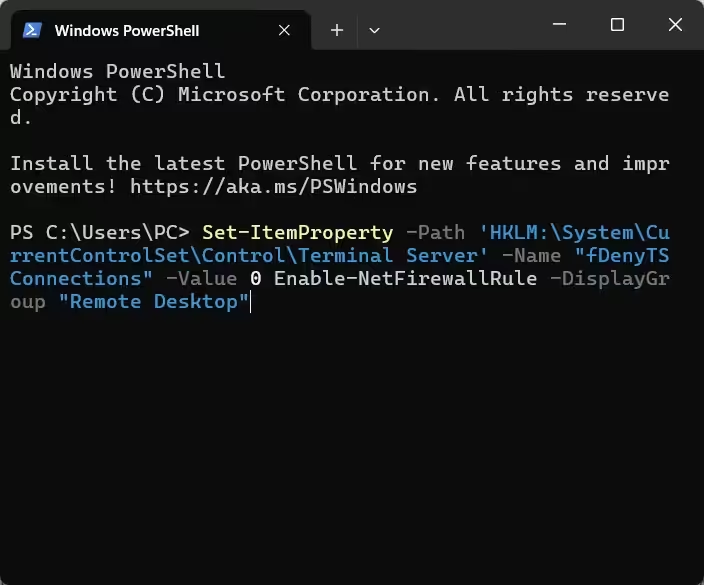
Method 2: Enable RDP via Windows Server Manager
For Windows Server 2025, 2022, 2019, and 2016 environments using GUI management:
- Launch Server Manager from the Start Menu or taskbar.
- Click on Local Server in the left navigation pane.
- Locate the Remote Desktop status line (default is Disabled) and click the link.
- In the System Properties > Remote dialog, select Allow remote connections to this computer.
- Keep “Allow connections only from computers running Remote Desktop with Network Level Authentication” checked.
- Click Apply and OK.
Method 3: Enable RDP via Command Prompt (CMD)
If managing a minimal Server Core instance or scripting batch deployments, execute these two commands in an elevated Command Prompt:
:: Set Registry key to enable RDP
reg add "HKLM\System\CurrentControlSet\Control\Terminal Server" /v fDenyTSConnections /t REG_DWORD /d 0 /f

:: Allow RDP through Windows Firewall
netsh advfirewall firewall set rule group="Remote Desktop" new enable=Yes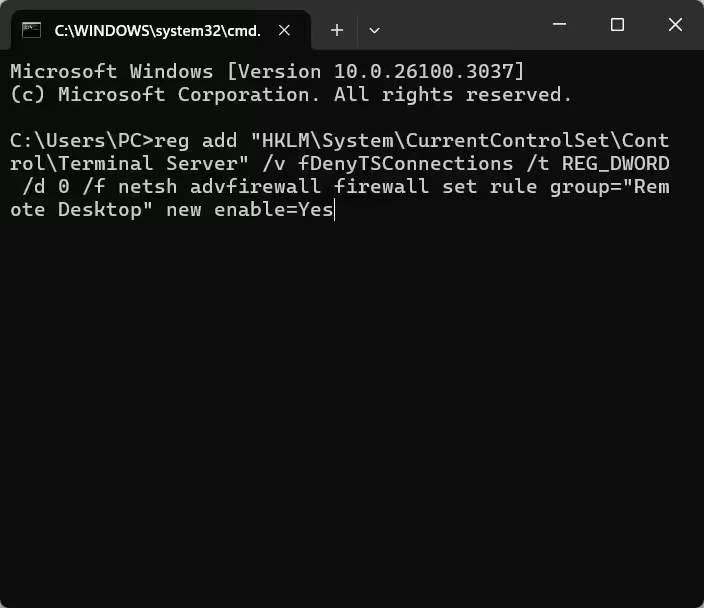
Method 4: Enable RDP via Group Policy (GPO)
To enforce RDP across domain-joined machines or local policies:
- Press
Win + R, typegpedit.msc, and hit Enter to open the Local Group Policy Editor. - Navigate to:
Computer Configuration > Administrative Templates > Windows Components > Remote Desktop Services > Remote Desktop Session Host > Connections - Double-click Allow users to connect remotely by using Remote Desktop Services.
- Select Enabled, click Apply, and then OK.
- Force an immediate policy update in terminal:
gpupdate /force
Method 5: Enable RDP via Windows Settings (Windows 11 / 10)
- Open Settings (
Win + I) > System > Remote Desktop. - Toggle Remote Desktop to On.
- Click Confirm when prompted to enable the connection.
Troubleshooting Remote Desktop connection issues
If you cannot connect after enabling RDP:
- Service Status: Ensure TermService is running:
Get-Service TermService | Select-Object Status, StartType - Port Listening: Verify TCP port
3389is listening:netstat -ano | findstr :3389 - User Permissions: Non-administrator user accounts must be added to the Remote Desktop Users group via
lusrmgr.msc. - Datacenter Hardware Firewalls: Ensure your cloud hosting control panel or edge firewall is not blocking inbound TCP port
3389.
For high-performance, fully optimized remote desktop environments with dedicated resources and unmetered 1Gbps bandwidth, explore Aminserve High-Speed RDP Hosting and Windows Cloud VPS Solutions.