Troubleshooting: Cannot Connect
Remote Desktop is usually rock solid, but when it goes down it always seems to happen at the worst moment. Before you panic or open a ticket, work through this list. In our support queue these steps solve the vast majority of “my RDP stopped working” tickets, and most people are back online within a few minutes.
1. Check the address and port you are using
The most common cause of a failed connection is simply the wrong address. When we deliver a service, the email includes the exact login details, for example 203.0.113.10 or 203.0.113.10:3390. Double check that you are using the IP and port exactly as written, because one typo and Remote Desktop quietly fails.
2. Restart the machine (it fixes more than you think)
Around half of connection problems clear up after a restart. It is the fastest thing to try, and you can do it yourself:
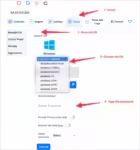
1. Log in to your client area.
2. Open Services and find your RDP.
3. Click the restart button.
A restart usually takes two to three minutes. Wait for the machine to come back up before trying to connect again.
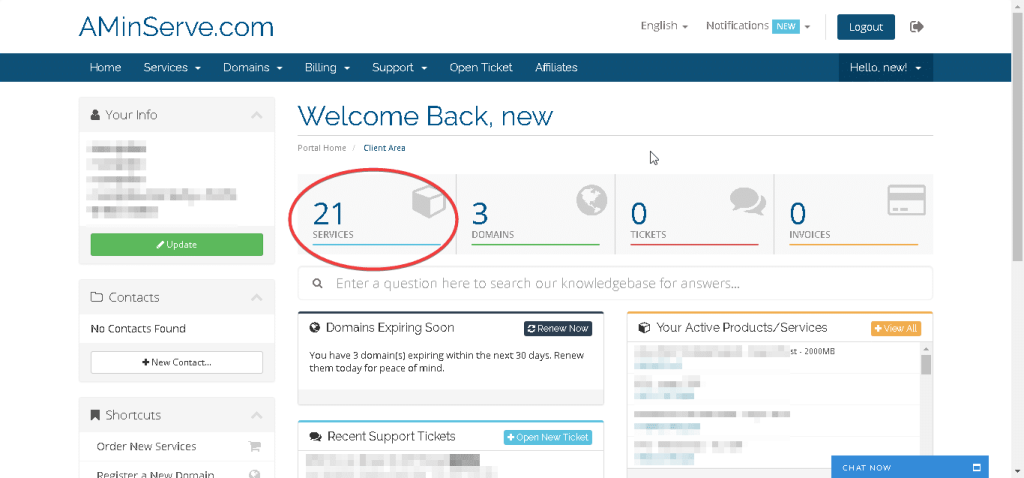
You will see a list like this:

3. Reinstall the OS when things are really broken
If a restart does not help, the next lever is a full OS reinstall. This wipes the server back to a clean Windows install, like the day you bought it, and takes about fifteen minutes. Do this when the RDP is completely unreachable, you lost control of the machine, or the OS is corrupt.
Important: a reinstall erases everything on the disk. Files, installed software and custom settings are gone. If you need something off the machine first, use the VNC console below to back it up.
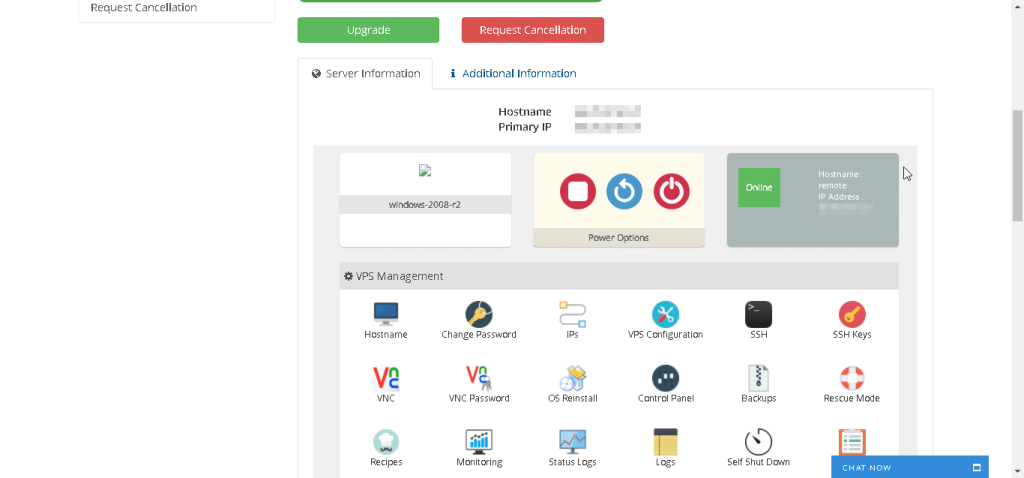
4. Use the VNC console when RDP is dead but the machine is alive
There is a rescue path that works even when Remote Desktop refuses to connect: the VNC console from your panel.
1. In your service panel, click VNC and enable it if it is not already on.
2. You get an address and a password.
3. Download a VNC viewer: TightVNC or RealVNC.
4. Connect with the address and password you were given.
Inside the console you see the actual screen of the server. This is how you fix a machine you locked yourself out of, for example if you installed a VPN or proxy on the RDP and then lost the remote connection. Connect through VNC, remove or disable the VPN, and Remote Desktop works again.
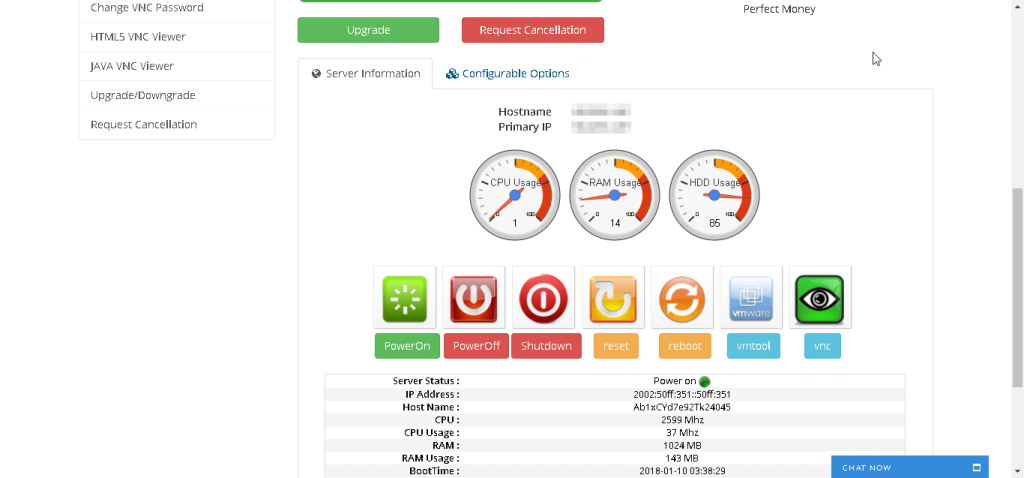
More detail: VNC console access for RDP and VPS services.
5. Fix “the credentials did not work” and locked accounts
If the connection reaches the server but Windows rejects your password, the usual cause is that the password was changed, or the account got locked from too many failed sign-in attempts.
What actually fixes it:
- Reset the password from your control panel, or reinstall the OS and choose a new password. After setting a new password, power the machine off and on. This trips people up all the time: the password is set, but Windows does not apply it until a reboot.
- If the account is locked, wait a few minutes for Windows to release the lock, or reinstall the OS with a fresh password.
If you changed the password yourself and then could not connect, the reboot step is almost certainly the fix.
6. Clear Windows-specific sticky states
Sometimes the problem is local to the Windows install. Common culprits we see in tickets:
- RDP cache holds a stale saved password. Clear saved credentials in Windows Credential Manager.
- Network profile changed after an IP change. Reconnect with the new IP from the delivery email.
- Firewall or security software blocked the RDP port. Check that Windows Firewall allows inbound TCP on port 3389, or your custom port.
7. Still stuck? Open a ticket with the right info
If you worked through everything above and the RDP still will not connect, open a support ticket. The fastest resolution happens when you include:
- what exactly you tried (restart, reinstall, password reset)
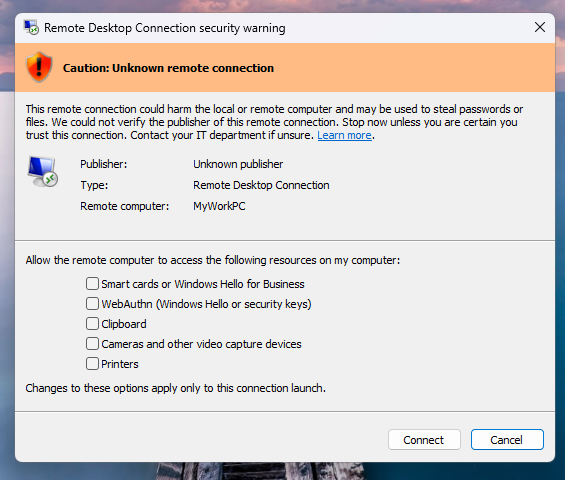
- a screenshot of the error message
- your RDP password if you changed it, so we can see whether the panel matches the machine
Tickets with screenshots get resolved much faster than “it does not work” with nothing else.