Maintaining reliable, automated backups of your Linux VPS or dedicated server is the single most critical safeguard against hardware failures, accidental file deletions, software corruption, and ransomware. A comprehensive backup strategy ensures you can restore web applications, configuration files, and databases in minutes with zero data loss.
This guide explains how to create complete system backups on Linux (Ubuntu, Debian, AlmaLinux, Rocky Linux, CentOS) using native tar archives, automated rsync incremental syncs, and off-site cloud transfers without external dependencies.
The 3-2-1 backup strategy for servers
Industry-standard server management follows the 3-2-1 rule:
- 3 Copies of Data: Maintain your live production data and at least two distinct backup copies.
- 2 Different Media Types: Store backups on different storage media (e.g. local secondary storage drive + remote storage server).
- 1 Off-Site Location: Keep at least one copy in an independent remote datacenter to protect against facility-level outages.
Method 1: Create a full system archive using tar
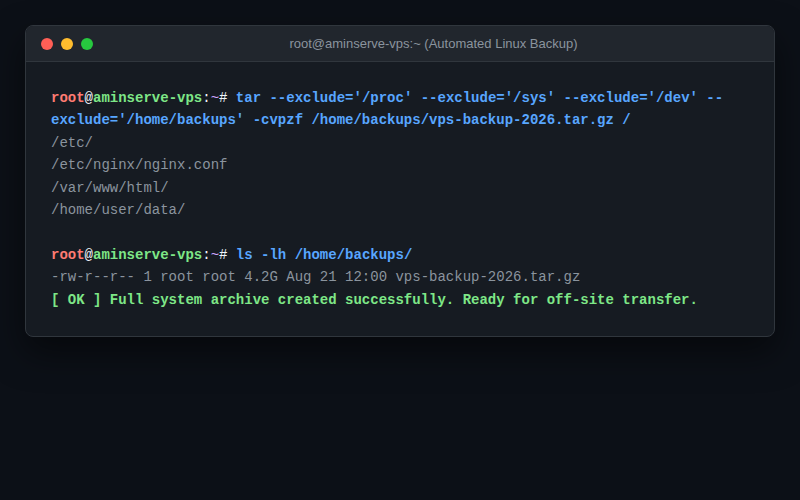
The tar utility creates a compressed .tar.gz snapshot of your entire filesystem while preserving original Linux file permissions, timestamps, and symlinks.
Step 1: Create the backup directory
sudo mkdir -p /home/backupsStep 2: Execute the full system tar command
When archiving the root filesystem (/), you must exclude virtual filesystems (/proc, /sys, /dev, /run) and the backup directory itself to prevent recursive loops:
sudo tar --exclude='/proc' \
          --exclude='/sys' \
          --exclude='/dev' \
          --exclude='/run' \
          --exclude='/mnt' \
          --exclude='/media' \
          --exclude='/lost+found' \
          --exclude='/home/backups' \
          -cvpzf /home/backups/vps-backup-$(date +%F).tar.gz /
Flag breakdown:
-c: Create a new archive.-v: Verbose output (displays files being archived).-p: Preserve original file permissions and ownership flags.-z: Compress archive using gzip.-f: Output target archive filename.
Method 2: Incremental backups using rsync (Fastest)
For ongoing daily backups, rsync is significantly faster than creating full tar archives because it copies only modified blocks:
Local incremental backup to secondary drive (e.g. /mnt/backup):
sudo rsync -aAXv --delete \
     --exclude={"/dev/*","/proc/*","/sys/*","/tmp/*","/run/*","/mnt/*","/media/*","/lost+found"} \
     / /mnt/backup/
Remote backup to an offsite storage server over SSH:
sudo rsync -aAXv -e "ssh -p 22" --delete \
     --exclude={"/dev/*","/proc/*","/sys/*","/tmp/*","/run/*","/mnt/*","/media/*"} \
     / root@REMOTE_STORAGE_IP:/backups/vps-node/
How to automate daily backups via Cron
- Create a dedicated backup script in
/usr/local/bin/auto-backup.sh:#!/bin/bash DEST="/home/backups" FILENAME="vps-backup-$(date +%A).tar.gz" # Run sync first sync # Create compressed archive tar --exclude='/proc' --exclude='/sys' --exclude='/dev' --exclude='/run' --exclude='/home/backups' \ -cpzf "$DEST/$FILENAME" / # Delete backups older than 7 days find "$DEST" -type f -name "*.tar.gz" -mtime +7 -exec rm {} \; - Make the script executable:
sudo chmod +x /usr/local/bin/auto-backup.sh - Add a daily cron job to run at 3:00 AM:
sudo crontab -e
# Add line:
0 3 * * * /usr/local/bin/auto-backup.sh > /var/log/backup.log 2>&1
How to restore files from a tar backup
To restore individual files or extract the full archive back to the root directory:
# Restore entire archive to root
sudo tar -xvpzf /home/backups/vps-backup-2026-08-21.tar.gz -C /

# Extract a specific directory only (e.g. /etc/nginx)
sudo tar -xvpzf /home/backups/vps-backup-2026-08-21.tar.gz etc/nginx -C /tmp/restore/
Managed off-site backups via Aminserve
For mission-critical production servers, Aminserve provides automated daily and weekly off-site snapshot backups stored in isolated datacenters across Europe and North America. You can enable automated snapshots with one click in your Client Area.
For high-performance cloud hosting with redundant NVMe storage and 24/7 dedicated support, explore Aminserve Linux and Windows VPS hosting and Dedicated RDP Plans.