Hosting your own dedicated Minecraft server on a Linux VPS provides complete administrative freedom, zero player slot restrictions, full mod and plugin support, and low-latency multiplayer performance. While vanilla Minecraft server jars are resource-heavy, running high-performance forks like Paper (PaperMC) dramatically optimizes tick loop calculations, memory utilization, and chunk loading.
This comprehensive guide walks you through setting up a modern Minecraft server on Ubuntu 24.04/22.04 LTS, Debian 12, AlmaLinux 9, Rocky Linux, and CentOS using Java 21 (OpenJDK 21), automated systemd service management, and firewall port configuration.
Recommended hardware requirements for Minecraft servers
- Small Server (1–5 players, Vanilla/Paper): 2 vCPU cores, 2 GB – 4 GB RAM.
- Medium Server (5–20 players with Plugins): 4 vCPU cores, 6 GB – 8 GB RAM.
- Modded Server (Forge / Fabric / Large Modpacks): 4+ high-frequency vCPU cores, 12 GB – 16 GB RAM + NVMe SSD storage.
Step 1: Create a dedicated unprivileged user
For security best practices, never run game servers directly as the root user:
# Create dedicated minecraft system user and directory
sudo useradd -r -m -d /opt/minecraft -s /bin/bash minecraft
sudo su - minecraft
Step 2: Install Java 21 (OpenJDK 21)
Modern Minecraft versions (1.20.5+) require Java 21 (LTS). Switch back to your sudo account to install the runtime:
On Ubuntu and Debian:
sudo apt update && sudo apt install openjdk-21-jre-headless screen wget curl -yOn AlmaLinux, Rocky Linux, and CentOS:
sudo dnf install java-21-openjdk-headless screen wget curl -yStep 3: Download PaperMC (High-Performance Server)
PaperMC delivers massive performance gains over the default vanilla software. Switch to the minecraft user and download the server build:
sudo su - minecraft
mkdir -p /opt/minecraft/server
cd /opt/minecraft/server

# Download the latest Paper 1.21 build
wget https://api.papermc.io/v2/projects/paper/versions/1.21.1/builds/119/downloads/paper-1.21.1-119.jar -O server.jar
Step 4: Accept the Minecraft EULA agreement
- Run the server once to generate initial configuration files:
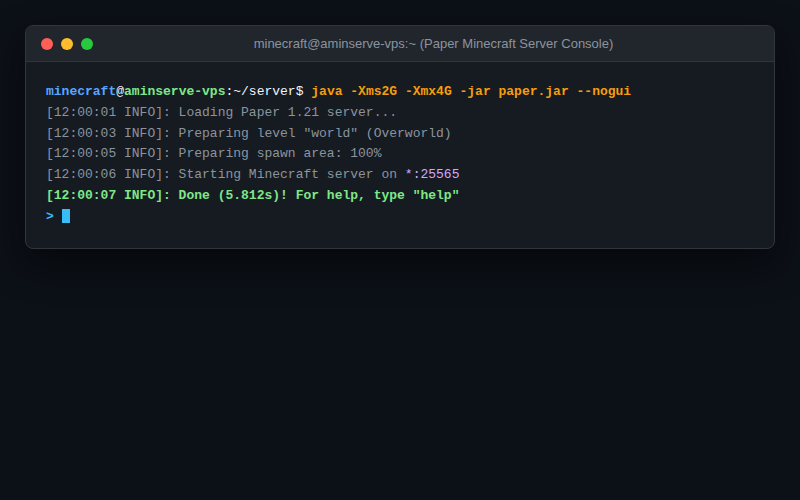
java -Xms1G -Xmx2G -jar server.jar --nogui - The server will stop and create
eula.txt. Open the file:nano eula.txt - Change
eula=falsetoeula=true. Save and exit (Ctrl + O, Enter, Ctrl + X).
Step 5: Configure systemd service for auto-restart (Recommended)
Running your server under systemd ensures it automatically starts on system boot and restarts if a crash occurs.
- Exit back to your sudo user (type
exit). - Create the service unit file:
sudo nano /etc/systemd/system/minecraft.service - Paste the following service configuration (adjust
-Xmx4Gaccording to your VPS RAM size):[Unit] Description=Minecraft Dedicated Server After=network.target [Service] WorkingDirectory=/opt/minecraft/server User=minecraft Group=minecraft Restart=always ExecStart=/usr/bin/java -Xms2G -Xmx4G -XX:+UseG1GC -XX:+ParallelRefProcEnabled -XX:MaxGCPauseMillis=200 -jar server.jar --nogui [Install] WantedBy=multi-user.target - Enable and start the service:
sudo systemctl daemon-reload
sudo systemctl enable --now minecraft
Step 6: Open Minecraft Port 25565 in your firewall
Minecraft multiplayer uses TCP/UDP port 25565. Open this port to allow incoming player connections:
On Ubuntu / Debian (UFW):
sudo ufw allow 25565/tcp
sudo ufw reload
On AlmaLinux / Rocky / CentOS (FirewallD):
sudo firewall-cmd --permanent --add-port=25565/tcp
sudo firewall-cmd --reload
Step 7: Connect from your Minecraft game client
- Launch Minecraft on your PC.
- Click Multiplayer > Add Server.
- In the Server Address box, enter your VPS IP address (e.g.
YOUR_SERVER_IPorYOUR_SERVER_IP:25565). - Click Done and join your high-speed cloud Minecraft world!
For lag-free gaming with unmetered 1Gbps bandwidth, high clock-speed AMD/Intel NVMe processors, and dedicated DDoS protection, explore Aminserve Linux VPS Hosting and Dedicated Server Solutions with 24/7 dedicated support.