Linux handles .tar.gz and .zip natively out of the box. But the moment a client uploads a .rar archive or a multi-part backup from Windows, standard Linux distributions fail with command not found because RAR is a proprietary format not bundled by default.
1. Install unrar in 10 Seconds
Ubuntu, Debian & Linux Mint:
sudo apt update && sudo apt install -y unrarAlmaLinux, Rocky Linux & CentOS:
Enterprise Linux distributions do not ship unrar in the base repository. Enable EPEL (Extra Packages for Enterprise Linux) first, then install:
sudo dnf install -y epel-release
sudo dnf install -y unrar
2. The “e” vs “x” Trap (Never Flatten Your Folders)
Most admins instinctively type unrar e archive.rar thinking e stands for extract. It does, but it strips all directories and dumps every single file loose into your current working folder.
Always use x (extract with full paths):
# Extract preserving exact folder hierarchy:
unrar x archive.rar

# Extract directly into a target folder:
unrar x archive.rar /var/www/html/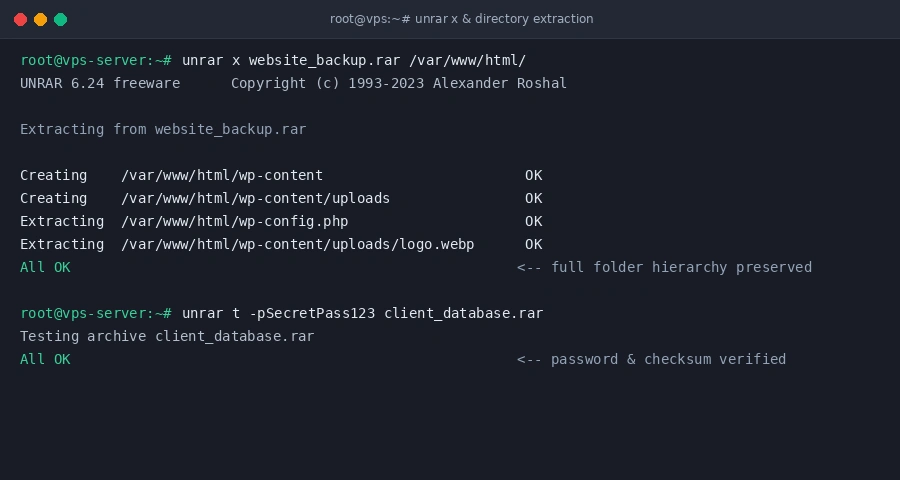
3. unrar Quick Cheatsheet
- List contents without unpacking:
unrar l archive.rar - Test archive integrity (check for corruption):
unrar t archive.rar - Extract password-protected archives:
unrar x -pSecretPass123 archive.rar - Extract multi-part split volumes (.part01.rar): Just run
unrar x archive.part01.rarand it will automatically chain through the remaining parts in sequence.
4. What if You Need to CREATE .rar Files?
The unrar package is decompression only. If you need to produce .rar archives on Linux, you must install the proprietary rar creation package:
# Ubuntu/Debian:
sudo apt install -y rar

# Compress a directory:
rar a backup.rar /path/to/folder/
Unless you are sending files to Windows users who strictly demand RAR, save your CPU cycles and use native Linux tar instead (tar -czvf backup.tar.gz /path/to/folder/). It is faster, open-source, and guaranteed to unpack on any server out of the box.