
Managing web hosting services, RDP servers, and Windows VPS across teams often requires sharing access with developers, billing departments, or end clients. Instead of sharing your primary master account password, the Aminserve client area includes a dedicated Sub-Account and Contact Management system.
Sub-accounts allow you to invite team members and clients with granular permissions—letting an accountant pay invoices, a sysadmin open technical support tickets, or a reseller give clients direct access to manage their specific services.
Why use sub-accounts instead of sharing master credentials?
- Enhanced Account Security: You never expose your primary email or master billing credentials to third parties.
- Granular Role-Based Permissions: Grant access strictly to what each user needs (e.g. only billing, only support, or full control).
- Customized Email Notifications: Route invoices to your finance team while technical notifications go to your system administrator.
- Instant Access Revocation: Delete or modify a sub-account at any time without resetting your master password.
Step-by-step: How to create a sub-account
- Log in to your Aminserve Client Area.
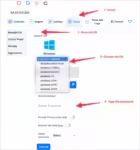
- In the top-right user menu, click on your account name and select User Management or Contacts / Sub-Accounts (or access directly via Contacts Page).
- In the contact dropdown, ensure Add New Contact is selected.
- Enter the user’s details (First Name, Last Name, Email Address, Phone Number).
- Scroll down to the Activate Sub-Account section and check the box: “Tick to configure as a sub-account with client area access”.
- Set a strong password for the sub-account user.
Configuring sub-account permissions
You can fine-tune exactly what the sub-account is allowed to see and do inside the portal by selecting specific permission checkboxes:
- Modify Master Account Profile: Allows editing main company contact details.
- View & Modify Host/Product Passwords: Lets developers view server root/admin passwords and request root resets.
- Perform Product Single Sign-On: Allows launching control panels directly from the client area.
- View & Pay Invoices: Essential for accounting staff to download PDFs and process cryptocurrency or card payments.
- View & Accept Quotes: Manage custom dedicated server proposals.
- View & Open Support Tickets: Lets technical personnel communicate directly with Aminserve support engineers.
- Manage Emails & Domains: Control domain nameservers and DNS records.
Configuring email notification preferences
If you prefer a contact to receive email alerts without logging into the portal, leave client area access unchecked and select only the relevant notification types:
- General Emails: General company announcements and security bulletins.
- Product Emails: Server delivery details, provisioning notices, and root credentials.
- Domain Emails: Domain renewal notices and WHOIS alerts.
- Invoice Emails: New invoices, payment confirmations, and overdue reminders.
- Support Emails: Ticket responses and support updates.
How to remove or deactivate a sub-account
When an employee leaves your organization or a project ends:
- Navigate back to Contacts / Sub-Accounts.
- Select the contact from the Choose Contact dropdown.
- Click Delete Contact at the bottom of the page, or uncheck Activate Sub-Account to instantly disable portal login access while preserving their contact history.