Few errors trigger panic like typing mysql -u root -p and hitting a brick wall:
ERROR 1045 (28000): Access denied for user 'root'@'localhost' (using password: YES)This happens when root credentials are misplaced, when an automated script changes authentication plugins (such as switching between auth_socket and mysql_native_password), or after migrating a Linux VPS. You do not need to reinstall the database or risk corrupting existing tables.
Here is the safe emergency recovery sequence to regain root access on MySQL 8.0, MariaDB 10.x, or older installations without opening your database to network attacks.
1. Stop the Service and Launch with Network Isolation
First, stop the running database server:
# On Ubuntu / Debian:
sudo systemctl stop mariadb || sudo systemctl stop mysql

# On AlmaLinux / Rocky Linux / CentOS:
sudo systemctl stop mysqld
Now start the daemon in the background with two critical security flags: --skip-grant-tables (which bypasses password authentication) and --skip-networking (which stops external TCP connections so nobody on the internet can connect while passwords are disabled):
sudo mysqld_safe --skip-grant-tables --skip-networking &Press Enter if your terminal prompt pauses. The daemon is now running in local maintenance mode.
2. Reset the Root Password in Shell
Connect directly without any password:
mysql -u rootBecause grant tables are bypassed, MySQL loads with read-only permission tables. You must reload privileges first before you can execute password modifications:
FLUSH PRIVILEGES;For MySQL 8.0+:
ALTER USER 'root'@'localhost' IDENTIFIED BY 'YourNewStrongSecretKey123!';
FLUSH PRIVILEGES;
EXIT;
For MariaDB 10.4+:
ALTER USER 'root'@'localhost' IDENTIFIED VIA mysql_native_password USING PASSWORD('YourNewStrongSecretKey123!');
FLUSH PRIVILEGES;
EXIT;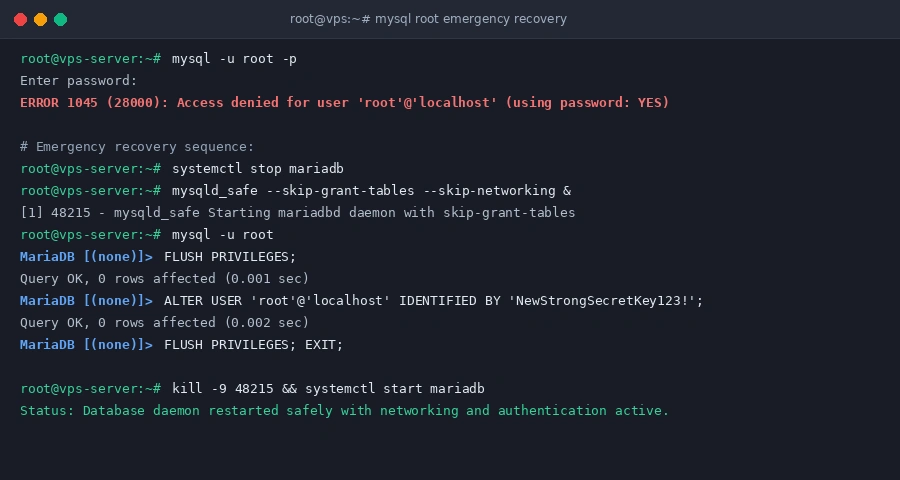
3. Terminate Safe Mode and Verify Connection
Do not leave the server running in safe mode. Kill the temporary mysqld_safe background process and restart the standard system service:
sudo pkill -9 mysqld
sudo pkill -9 mariadbd

# Start the clean service:
sudo systemctl start mariadb || sudo systemctl start mysql   # Debian/Ubuntu
sudo systemctl start mysqld                                  # RHEL/AlmaLinux
Verify that your new password works immediately:
mysql -u root -pType your new password. You will land directly in the MariaDB / MySQL monitor prompt with full administrative privileges restored.