Connecting to a Windows VPS, Windows RDP server, or remote office workstation from macOS gives Apple users full access to Windows-only business software, development environments, and cloud servers. Microsoft provides an official, native macOS application—Windows App (formerly Microsoft Remote Desktop)—optimized for Apple Silicon (M1/M2/M3/M4) and Intel Macs, supporting multi-monitor setups, Retina display scaling, clipboard sharing, and local drive redirection.
This comprehensive guide walks you through installing the official client, configuring custom RDP connection profiles (including non-standard ports), redirecting local Mac folders and clipboards, and troubleshooting certificate or NLA connection errors on macOS Sequoia, Sonoma, and Ventura.
Prerequisites: Information needed before connecting
Before establishing your remote session, ensure you have your connection credentials ready:
- Server IP or Hostname: Your server’s public IPv4 address or domain (e.g.
198.51.100.25orvps.aminserve.com). - Port Number (if customized): Standard RDP uses
3389. If your server uses a custom port (such as22222), the format will be198.51.100.25:22222. - Username & Password: Typically
Administratorfor dedicated Windows servers or your assigned remote username.
Step 1: Install Microsoft Remote Desktop on macOS
- Open the Mac App Store on your Mac.
- Search for “Microsoft Remote Desktop” (or Windows App).
- Click Get / Install or download directly from the Mac App Store Link.
- Launch the application from your Applications folder or Spotlight search.
Step 2: Add and configure your Remote PC
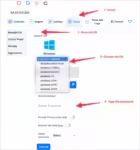
- In the top toolbar of Microsoft Remote Desktop, click Add PC (or the + button).
- Under PC Name, enter your server IP address. If using a custom port, append it with a colon (e.g.
198.51.100.25:3389). - Under User Account, click the dropdown and select “Add User Account…”:
- User Name:
Administrator - Password: Your server password.
- Friendly Name: e.g. Aminserve Windows VPS.
- Click Add to save the credentials securely in your macOS Keychain.
- User Name:
- Under Friendly Name, type a convenient label for this machine.
Step 3: Tune display resolution and Retina scaling
To ensure crystal-clear text on Retina Mac displays:
- Click the Display tab in the connection settings window.
- Check “Optimize for Retina displays” for crisp font rendering.
- Select “Fit session to window” or “Update the session resolution on resize” for dynamic desktop scaling.
- If you use dual monitors, check “Use all monitors”.
Step 4: Enable clipboard and Mac folder redirection
Seamlessly copy-paste files and map local Mac folders into your remote Windows server:
- Click the Devices & Audio tab.
- Ensure Clipboard is checked (enables text and image copy-pasting between Mac and Windows).
- Under Redirect Folders, check the box and click the + button.
- Select a folder on your Mac (such as Downloads or Documents).
- Click Save. When you connect, your selected Mac folder will appear as a mapped network drive inside Windows File Explorer.
Step 5: Connect to the Windows desktop
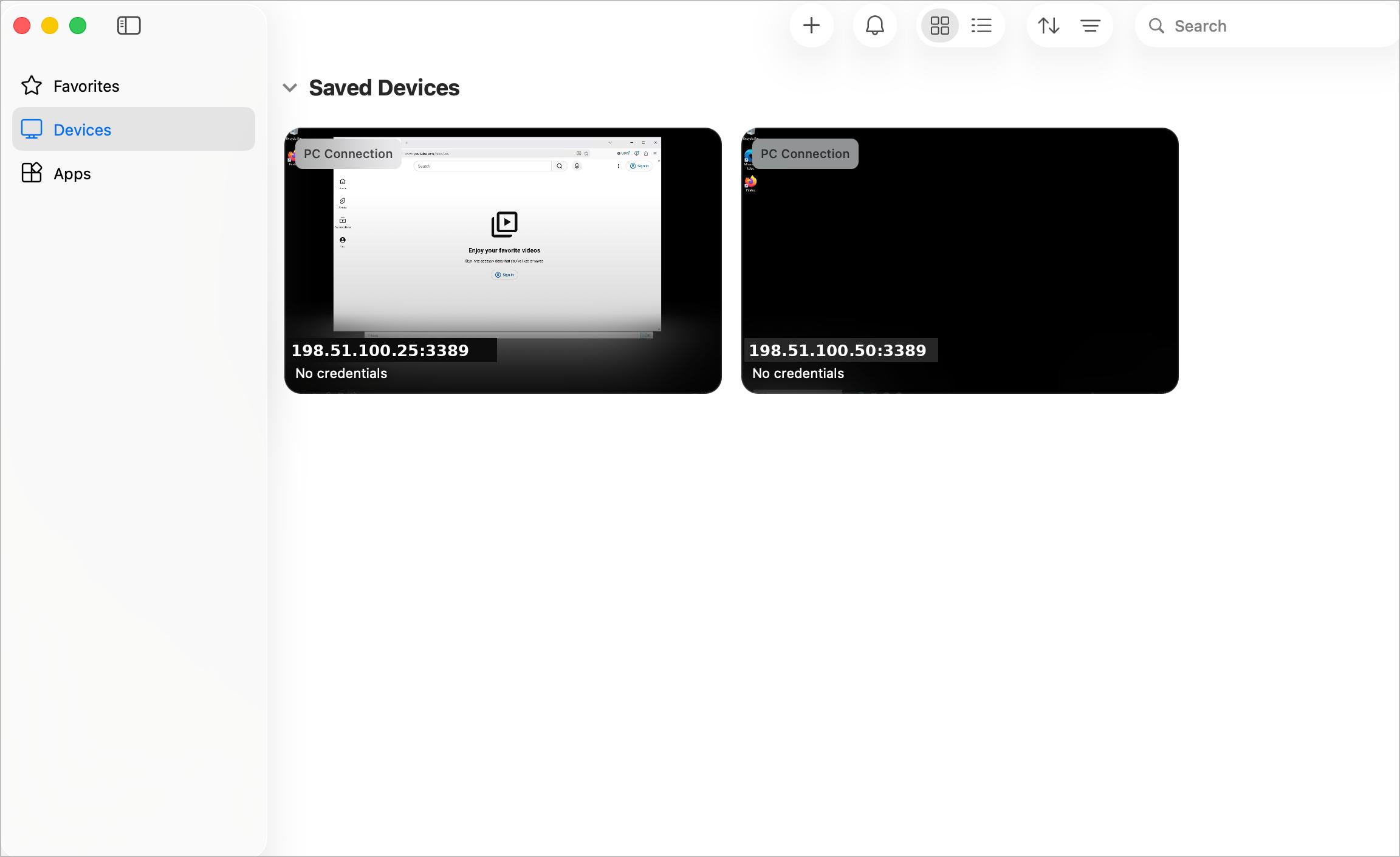
- Double-click the saved connection tile on your Microsoft Remote Desktop dashboard.
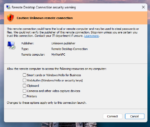
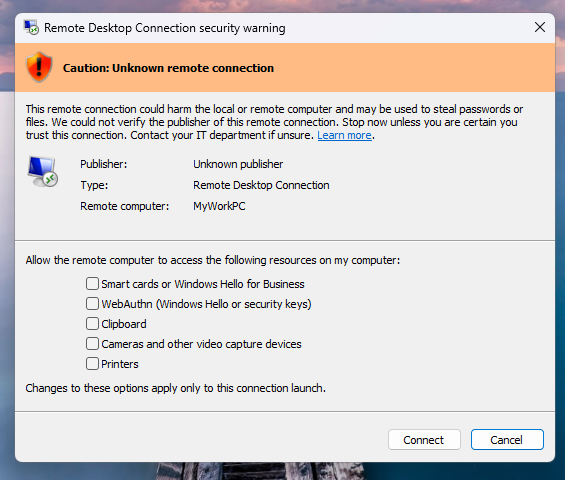
- If a “Certificate Warning” prompt appears (due to a self-signed SSL/TLS certificate generated by Windows Server), click Continue.
- Your remote Windows desktop will launch in a native, responsive macOS window.
Troubleshooting common Mac RDP connection issues
- Error 0x204 (Server Unreachable): Verify the server IP and port are correct. Ensure Windows Defender Firewall allows incoming RDP traffic on port 3389.
- Error 0x104 (NLA Failure): Ensure your username includes the domain prefix if joining Active Directory (e.g.
DOMAIN\Username) or check our RDP Authentication fix guide. - Black Screen on Connect: Disable UDP transport in Microsoft Remote Desktop preferences or adjust color depth to 16-bit.
For high-performance, low-latency cloud workstations with dedicated NVMe storage, 1Gbps unmetered bandwidth, and guaranteed 99.9% uptime, explore Aminserve Windows VPS and High-Speed RDP Hosting with 24/7 dedicated support.